Suppose your company has several divisions, and each division sells to the same customers. You need a complete picture of the customer base, so you ask everyone to send over their data.
There is just one problem: each division uses different customer names. One uses “Limited,” another uses “Ltd,” and another includes an apostrophe. Sometimes the difference is more substantial, such as a trading name instead of a person's name.
Power Query's Replace Values command can clean up those differences, but creating a separate step for every replacement soon becomes tedious. Instead, we can replace multiple values using a find and replace list, with one formula applying all the rules.
What You'll Learn
- Use a two-column replacement table to standardize customer names without creating separate replacement steps.
- Generate ordinary Replace Values code first, then adapt it for list-based replacements.
- Use List.Accumulate to carry an updated table through each replacement rule sequentially.
1. Prepare the Data and the Replacement List
For this example, we have two queries loaded into Power Query:
- Data: The customer data we want to clean, including a column called
Name. - FindReplace: A table containing the replacement rules, with columns called
FindandReplace.
Each row in the replacement table pairs an existing value with the value we want to use instead. For example, Marvin Hilton needs to become Magic Marvin. Other rules standardize a name containing trading details or make “Ltd” consistent with “Limited.”
Some customer names are already correct, so they do not need a replacement rule. We only need to list the variations we want to change.
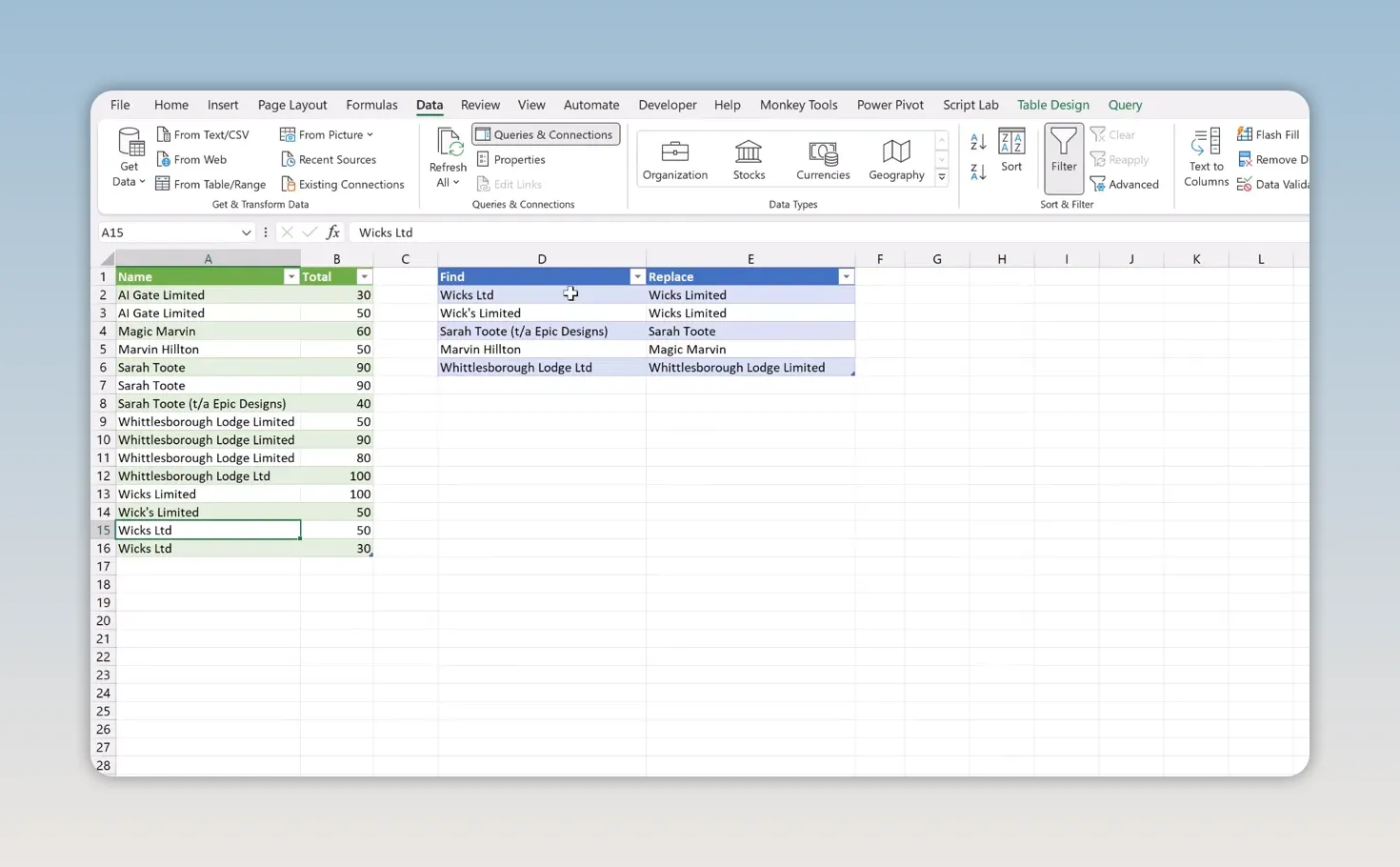
The query and column names matter. The formula below refers directly to FindReplace, Find, Replace, and Name. If you use different names, update those references to match.
2. Use Replace Values to Get the Syntax
Before writing the looping formula, we can get Power Query to do some of the work for us. Create an ordinary replacement step, then reuse the M code it generates.
- Open the
Dataquery. - Select the
Namecolumn. - Choose Transform > Replace Values > Replace Values.
- Enter
Find Thisas the value to find andReplace Withas the replacement. - Click OK.
The placeholder text does not matter. We only want the structure of the formula:
= Table.ReplaceValue(
    #"Changed Type",
    "Find This",
    "Replace With",
    Replacer.ReplaceText,
    {"Name"}
)
Here is what each part does:
#"Changed Type"identifies the previous step, which supplies the table to transform."Find This"is the text to search for."Replace With"is the replacement text.Replacer.ReplaceTextspecifies the text replacement operation.{"Name"}identifies the column to change.
Copy the formula from the formula bar using Ctrl+C, then delete the temporary replacement step. We will adapt that code so the find and replace values come from our list rather than fixed text.
3. Add the List.Accumulate Formula
This is the slightly tricky part. We need List.Accumulate, a function that is not available as a command in the Power Query interface, so we have to write the formula ourselves.
The idea is straightforward: start with the data table, apply the first replacement, then pass that updated table into the next replacement. Continue until every rule has been applied.
With the previous step selected, click the fx button beside the formula bar to add a step. Expand the formula bar and replace its contents with:
= List.Accumulate(
    {0..List.Count(FindReplace[Find])-1},
    #"Changed Type",
    (state, current) =>
        Table.ReplaceValue(
            state,
            FindReplace[Find]{current},
            FindReplace[Replace]{current},
            Replacer.ReplaceText,
            {"Name"}
        )
)
This is a formula for a new step in the existing Data query, not a complete replacement for the query. In this example, #"Changed Type" is the step immediately before it. Use your own previous step's name if it is different.
4. Understand How the Formula Works
List.Accumulate takes three arguments: a list, a starting value called the seed, and an accumulator function. Breaking those down makes the formula much easier to follow.
The list: which replacement are we applying?
The first argument creates a list of numbers representing the positions of the replacement rules:
{0..List.Count(FindReplace[Find])-1}FindReplace[Find] returns the Find column as a list. List.Count counts the items in that list.
Power Query counts list positions from zero. Therefore, if there are six rules, their positions are 0, 1, 2, 3, 4, and 5. Subtracting one from the count gives us the final position rather than a position beyond the end of the list.
The two dots create the range from zero through that final position. We will use each number to retrieve a matching pair from the Find and Replace columns.
The seed: what are we starting with?
The second argument is:
#"Changed Type"This is our starting table. Before any replacements happen, the accumulator needs the data from the previous step.
Although the function is called List.Accumulate, the result being carried forward does not have to be a list. Here, it is a table.
The accumulator: carry the updated table forward
The third argument is a function with two parameters:
(state, current) =>stateis the table as it currently stands.currentis the position number for the replacement rule being applied.
On the first pass, state is the original #"Changed Type" table and current is zero. Once the first replacement finishes, its result becomes the new state.
On the second pass, current becomes one, and the next replacement works on that already updated table. The process continues through the list.
Retrieve the matching find and replace values
Inside Table.ReplaceValue, we replace the original table reference with state. That ensures each pass builds on the previous result.
We also replace the placeholder search text with:
FindReplace[Find]{current}The curly brackets retrieve the item at the current position. When current is zero, this returns the first value in the Find column.
The replacement uses the same position in the other column:
FindReplace[Replace]{current}Using the same current value keeps each search value paired with its intended replacement. We leave Replacer.ReplaceText and {"Name"} unchanged because we are still replacing text in the same column.
If you build this from the copied formula, remove the copied formula's leading equals sign before placing Table.ReplaceValue inside the accumulator. Only the complete formula in the formula bar needs the initial equals sign.
5. Apply the Formula and Check the Results
Commit the formula. Power Query applies the replacement rules, and the customer names become consistent. For example, the entries for Marvin Hilton and Magic Marvin now both use Magic Marvin, while the other listed name variations are standardized too.
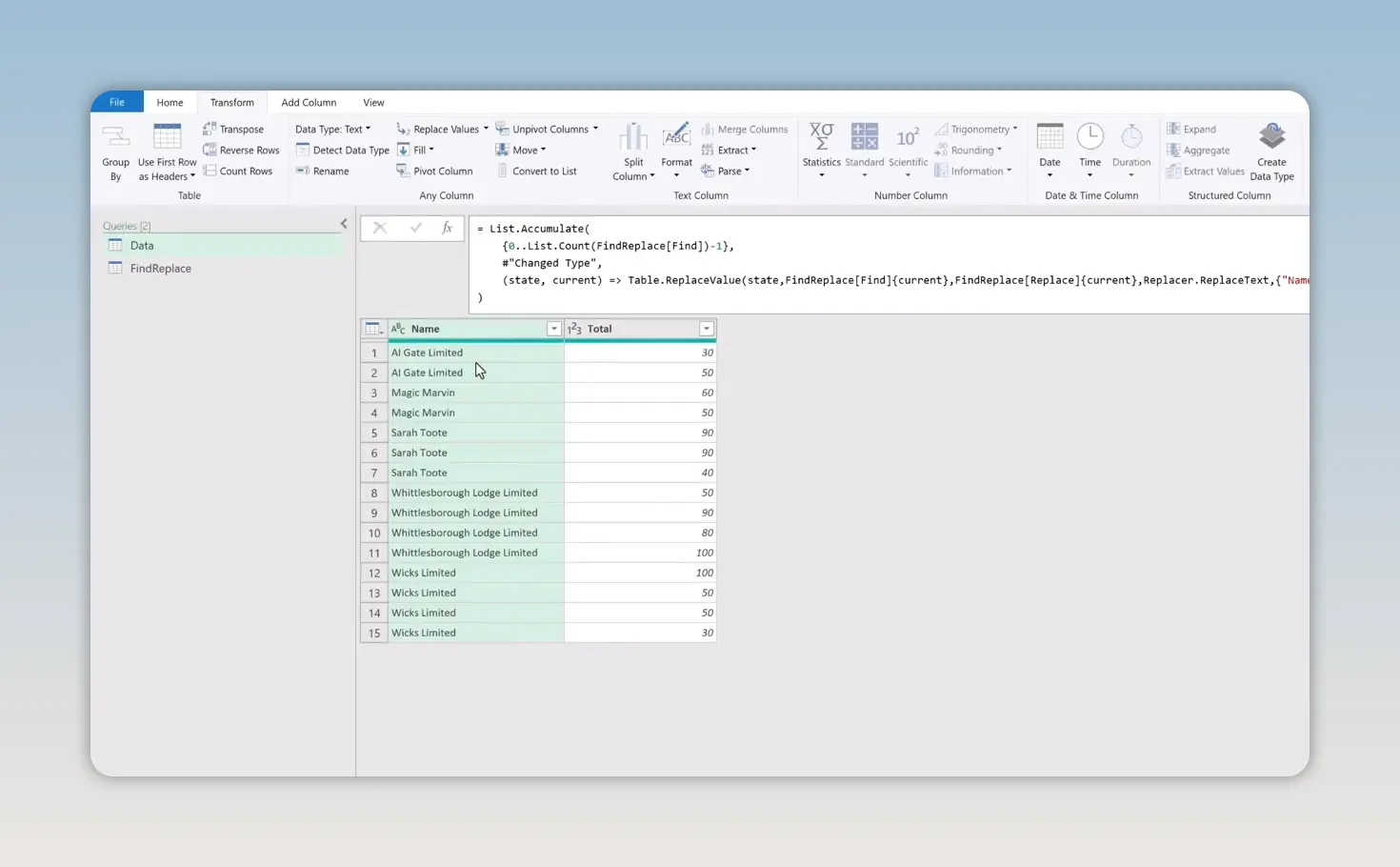
The important point is that we are not creating a separate transformation step for every rule. The replacement table supplies the values, while List.Accumulate provides the looping behavior.
Because each replacement uses the previous result, the rules run sequentially. Keeping that flow in mind helps explain exactly what state is doing throughout the formula.
A Useful Pattern Beyond One Cleanup
List.Accumulate can look a little daunting at first, but this example gives it a practical purpose: repeat the same transformation while changing the values used on each pass.
Once the three parts make sense, the formula becomes much less mysterious. The list tells us which rule to use, the seed supplies the starting table, and the accumulator carries each updated result forward.
For a deeper explanation of the function, Rick de Groot's guide to List.Accumulate is a useful next step. It is worth spending some time with this function, because it opens up powerful looping-style transformations in Power Query.


