If you keep giving Copilot the same instructions, you can save those instructions as a custom skill and call it whenever you need it. That means less time rewriting prompts and a more consistent starting point for the output.
A skill is simply a set of instructions saved in a specific location. When we reference that skill in a prompt, Copilot can use those instructions to carry out the task.
I tested this by creating a Finance Commentary Writer skill. The aim was to draft commentary from an Excel financial report using my preferred sentence structures, variance wording, and rules. It was my first attempt at creating a custom skill, so the useful question was not just how to set it up, but whether it would actually do what I wanted.
You need a Microsoft 365 Copilot license to use custom skills in Excel. This is a premium feature.
What You'll Learn
- Custom Copilot skills save reusable instructions so you do not need to repeat them in every prompt.
- Each skill needs a Markdown file, front matter, and a folder matching its name.
- Refresh and enable your skill in Excel, then reference it with an @ mention.
- Review generated commentary against the worksheet figures and your saved writing rules before accepting it.
Table of Contents
- What the Finance Commentary Writer skill does
- 1. Create the Copilot skills folder
- 2. Understand the skill file structure
- 3. Create the folder and add your instructions
- 4. Refresh and enable the custom skill in Excel
- 5. Call the skill with an @ mention
- 6. Wait for completion and review the results
- What does the Add button do?
- Save the instructions once, reuse them when needed
What the Finance Commentary Writer skill does
The skill takes the financial information already on the worksheet and turns it into draft commentary. Rather than explaining my writing requirements every time, I can reference the skill and tell Copilot which items I want commentary for.
For example, I can ask it to draft commentary for income, gross profit, overheads, and EBIT. The skill supplies the reusable instructions, while the prompt supplies the specific task and cell references.
There is an important distinction here: this is draft commentary for me to review and edit. The skill helps produce the wording in the format I want. It does not remove the need to check the numbers or decide whether the explanation is appropriate.
In one test, I accidentally asked for overheads in G19, even though overheads were actually in G17. Copilot identified the mismatch and used the overheads information. That was helpful, but it is still worth getting the references right rather than relying on Copilot to correct them.
1. Create the Copilot skills folder
Start in Excel and open the Copilot pane.
- Select the Copilot icon.
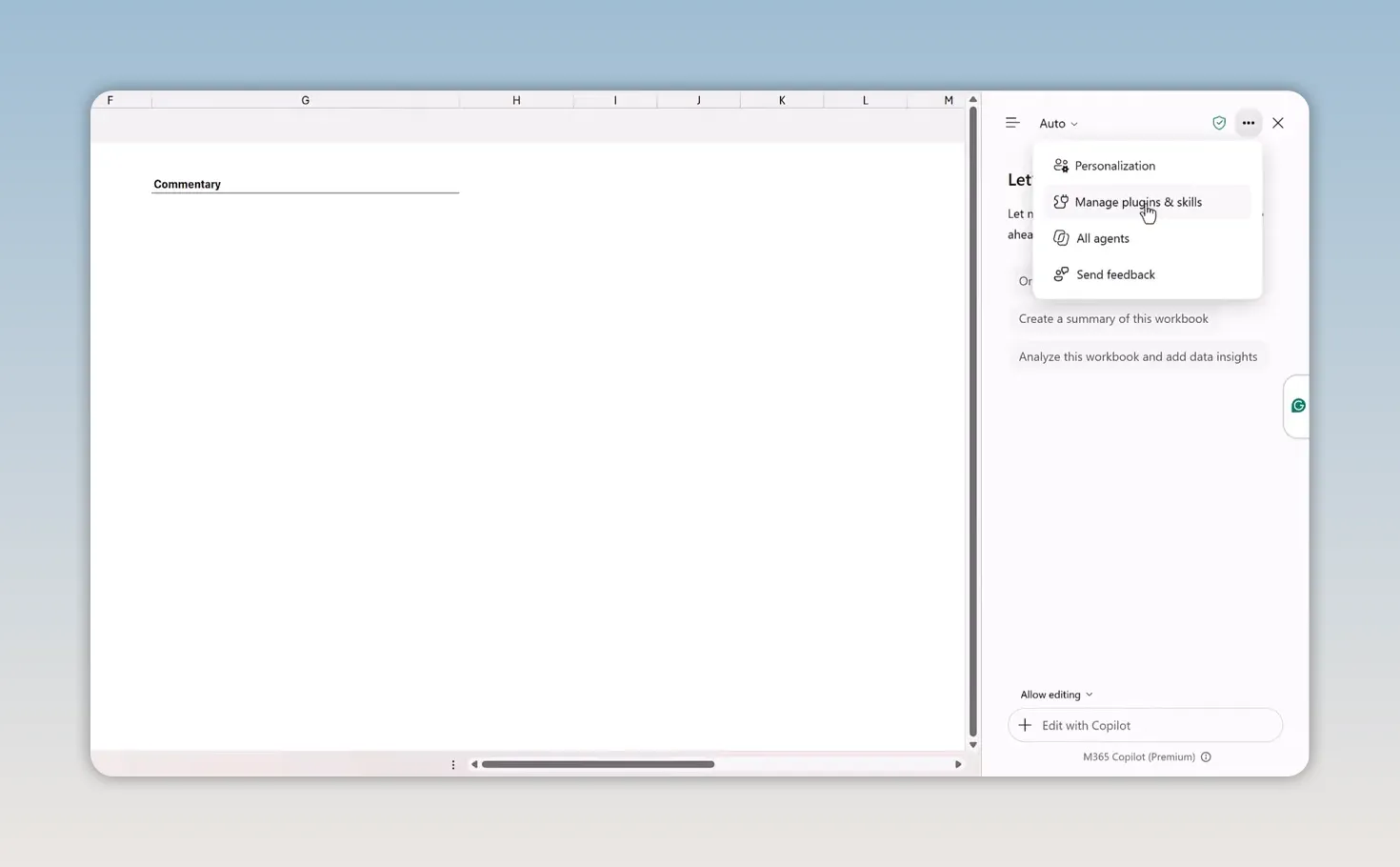
- Open the three-dot menu in the Copilot pane.
- Select Manage plugins and skills.
- Open Custom skills.
- If you have not set up a skills folder before, select Create skills folder.
The skills manager also includes premade skills. For example, the Finance section contains skills Microsoft has already created. We are using Custom skills because we want to supply our own instructions.
Creating the skills folder sets up the location in OneDrive where Excel will look for your custom skills. In my test, the new folder took about four or five seconds to appear.
In OneDrive, navigate through:
My files > Documents > Copilot > Microsoft Excel > skills
The new location includes an example skill folder and a README file. The README explains the setup and gives you an example to work from. I chose to create my own skill from scratch.
2. Understand the skill file structure
Before adding instructions, there are three structural requirements to get right:
- The instructions must be saved in a Markdown file called skill.md.
- The file must start with a front matter section containing a name and description.
- The file must sit inside a folder whose name matches the skill name in that front matter.
A Markdown file is a text file with a .md extension. You do not need anything more complicated than that for this example.
The front matter sits at the very top of the file, between two lines of three hyphens. For this skill, the header follows this structure:
---
name: finance-commentary-writer
description: Draft finance commentary using values already on the worksheet.
---
The instructions for the task go underneath that header. The name identifies the skill, the description explains its purpose, and the body tells Copilot what to do.
Because the name is finance-commentary-writer, the containing folder must also be called finance-commentary-writer.
Microsoft provides further details in its Copilot in Excel skills documentation. This is a useful reference for the file format and setup requirements.
3. Create the folder and add your instructions
Inside the OneDrive skills folder:
- Select Create or upload, then create a new folder.
- Name the folder finance-commentary-writer.
- Open the new folder.
- Select Create or upload > Markdown document.
- Replace the starter content with your front matter and skill instructions.
- Close the document, then rename it so the complete filename is skill.md.
When renaming, check whether OneDrive is already retaining the .md extension. The important point is that the resulting file has the required name, rather than the default name given to a new document.
What to put in the skill instructions
The file structure makes the skill available. The instructions determine how useful it is.
For my Finance Commentary Writer, I specified the sentence structures I wanted, how to use favorable and adverse wording, and how to describe variances. I also included a rule that Copilot should not calculate any numbers. It should use only values already visible on the worksheet.
The instructions covered these areas:
- Commentary format: the structure of the sentences and the order of the information.
- Variance wording: when to describe results as favorable or adverse.
- Small variances: when a variance is less than 1%, describe the result as broadly in line with budget and include the variance.
- Number handling: use the figures already displayed rather than calculating new ones.
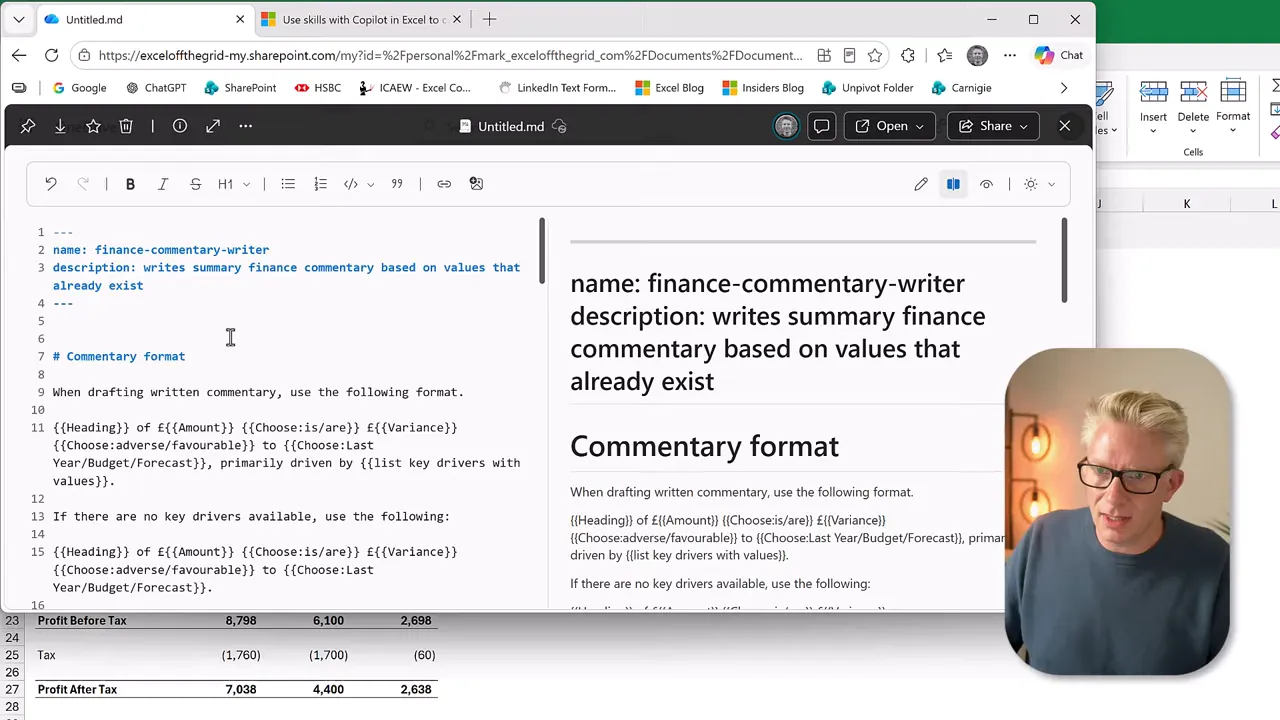
These are the kinds of requirements that would otherwise make every prompt long and repetitive. Saving them in the skill lets the next prompt focus on what needs to be done, rather than restating how to do it.
4. Refresh and enable the custom skill in Excel
Once the file is saved in OneDrive, return to Excel and open Custom skills again.
- Select the refresh icon so Copilot reads the skills location in OneDrive.
- Check that Finance Commentary Writer appears in the list.
- Turn the skill on using its toggle.
- Use the back controls to return to the main Copilot prompt.
In my test, refreshing brought the new skill into the list, and switching it on made it ready to use.
If yours does not appear, check the setup requirements first: the file location, the filename, the front matter, and the match between the folder name and skill name.
5. Call the skill with an @ mention
To use a skill, type @ in the Copilot prompt and start entering its name. Select the matching skill from the suggestions, then add the task you want it to perform.
For my full test, I asked Finance Commentary Writer to draft commentary for these items:
- Income: G7
- Gross profit: G9
- Overheads: G17
- EBIT: G19
The prompt can be short because the detailed writing instructions are already saved in the skill. After inserting the skill mention, ask it to draft the commentary for those items in the specified cells.
I also tested pasting a prepared prompt containing the skill reference. Copilot recognized the reference and underlined it. Whether you type or paste the prompt, check that the skill has been recognized before selecting Run.
6. Wait for completion and review the results
Copilot began adding commentary to the worksheet before it had finished the whole task. So, text appearing on the sheet does not necessarily mean the process is complete.
Wait until Copilot indicates it has finished. In this workflow, the completed result provided Done and Undo controls, with a rainbow-colored border around the changed areas.
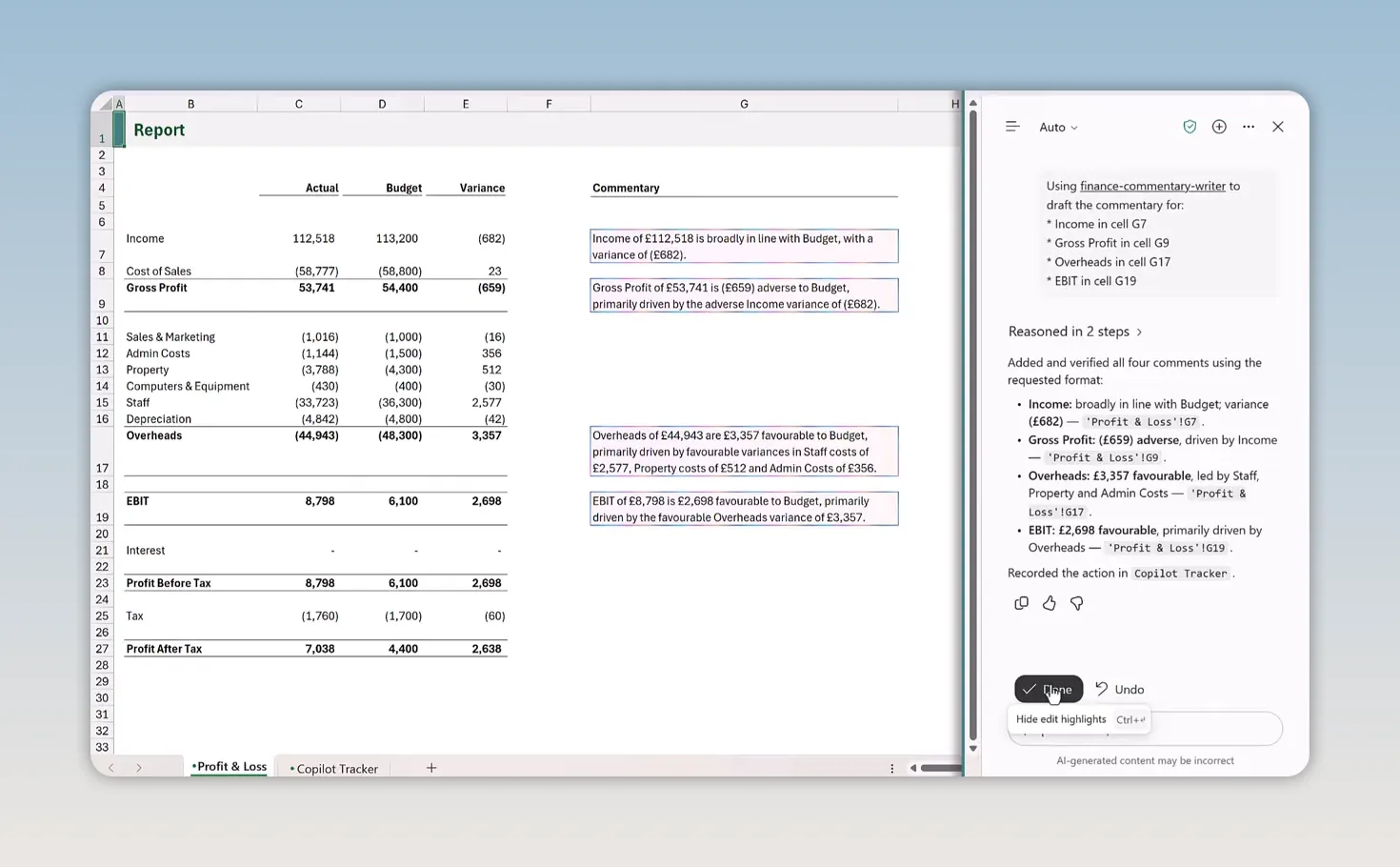
I then checked the commentary against both the worksheet values and the rules in my skill.
Income: applying the small-variance rule
The income commentary used the displayed income figure of 112,518 and variance of 682. It described income as broadly in line with budget, which matched the instruction to use that wording when the variance was less than 1%.
That was a useful check. Copilot had not just picked up the numbers; it had also applied the wording rule.
Gross profit: describing the adverse variance
For gross profit, the commentary identified an adverse budget variance of 659, primarily driven by the adverse income variance of 682.
The gross profit variance was more than 1%, so it used adverse wording rather than the small-variance wording. This also matched the intended format.
Overheads and EBIT: checking the remaining output
The overheads commentary used the corresponding figures and included a breakdown of the individual items. The EBIT commentary also appeared to match the report.
Once satisfied, I selected Done to accept the changes. If the result had not been suitable, Undo was available to reverse them.
Although the commentary was placed beside the financial report for this test, that is not necessarily where I would use it. It could form the draft of an email or a report cover summary, helping someone understand the main financial movements without reading the entire report.
What does the Add button do?
There is also an Add button in the Custom skills section. I initially took the longer route through OneDrive, so I went back to check what this button actually does.
The route is:
Copilot > three-dot menu > Manage plugins and skills > Custom skills > Add > Add in OneDrive
Selecting Add in OneDrive opens the OneDrive folder used for Excel skills. It is a shortcut to the right location, not a process that writes the skill for you.
You still need to create the individual skill folder, add the Markdown file, and supply the instructions.
Save the instructions once, reuse them when needed
The first attempt worked: Copilot used my custom skill to draft financial commentary in the format I requested, using the values already on the worksheet.
The practical benefit is straightforward. Keep the detailed, repeatable instructions in the skill, then use each prompt to identify the current task. You can create more skills by adding more skill folders to the same OneDrive location.
Use the skill to get to a useful draft faster, then review the result. That gives you the benefit of reusable instructions without handing over the final judgment.


