Excel’s SCAN function can look rather complicated at first. It combines arrays, LAMBDA, and calculations that depend on previous results. But once we understand what gets passed from one calculation to the next, it starts to make sense.
The key is this: SCAN performs a calculation for each value in an array, carries the result into the next calculation, and returns every intermediate result.
That makes it particularly useful for running totals and financial models where one period’s closing balance becomes the next period’s opening balance. We can build these calculations with a single spilling formula rather than a series of copied formulas.
What You'll Learn
- SCAN carries each calculation’s result forward and returns every intermediate result as an array.
- LAMBDA receives the previous result first and the current array value second.
- Eta reduction can replace a simple LAMBDA with a compatible function name.
- SCAN combines with spilled array formulas to build opening and closing balance calculations.
Table of Contents
- What does the SCAN function do?
- Create a running total from a two-column array
- Return one running balance per row
- Use functions inside the SCAN calculation
- Shorten SCAN formulas with eta reduction
- Build a corkscrew calculation with SCAN
- When should you use SCAN?
What does the SCAN function do?
For each value in an array, SCAN can use two things:
- The result of the previous calculation.
- The current value in the array.
It applies our chosen calculation, stores the result, and moves on to the next value. At the end, it returns an array containing the result from every step, not just the final answer.
SCAN syntax
=SCAN(initial_value,array,function)There are three arguments to understand:
- initial_value: The starting value used as the previous result for the first calculation.
- array: The values we want to process.
- function: The calculation to perform for each value, usually defined with LAMBDA.
Microsoft’s SCAN function reference provides the official syntax and supporting examples.
A simple running total
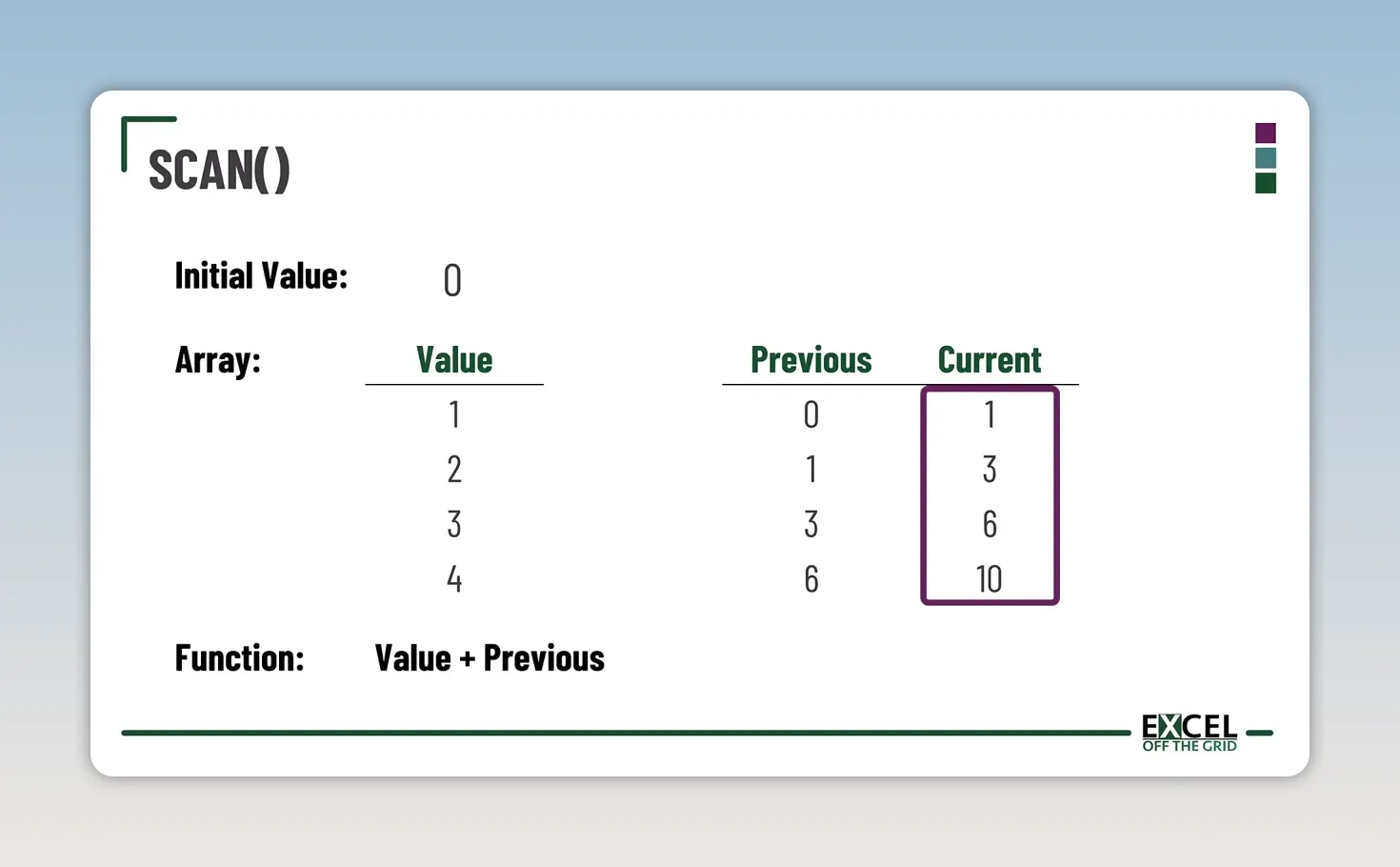
Suppose our initial value is 0, our array contains 1, 2, 3, and 4, and our calculation adds the current value to the previous result.
- First value: There is no previous calculation, so we use the initial value. 0 + 1 = 1.
- Second value: The previous result is now 1. 1 + 2 = 3.
- Third value: The previous result is now 3. 3 + 3 = 6.
- Fourth value: The previous result is now 6. 6 + 4 = 10.
SCAN returns 1, 3, 6, and 10 in a single array. The starting value of 0 is used to begin the calculation; it is not an extra item in the output.
Create a running total from a two-column array
Now we can apply that logic to a worksheet. Our example has dates in column B, amounts coming in in column C, and amounts going out in column D. The transactions run from row 6 to row 17.
The outflows are already stored as negative numbers, so adding the inflow and outflow values gives us the net movement.
To process both columns directly, enter this formula in cell E6:
=SCAN(0,C6:D17,LAMBDA(previous,value,previous+value))We start with 0 because there is no opening balance in this example. If we had an opening balance, we could use that amount or a reference to its cell instead.
The array is C6:D17. The final argument, LAMBDA, tells SCAN what calculation to perform.
How LAMBDA receives the values
LAMBDA lets us define a function inside the formula. Each time SCAN runs that function, it passes two values into it in a fixed order:
- First parameter: The previous result, also called the accumulator.
- Second parameter: The current array value.
In our formula, we have named those parameters previous and value. The calculation previous+value adds them together.
The first few steps are:
- Start with 0 and add the first inflow of 94, giving 94.
- Carry 94 forward and add the outflow of -65, giving 29.
- Carry 29 forward and add the next inflow of 51, giving 80.
SCAN continues through the remaining values in the same way. For this two-column array, it works across each row before moving down to the next one. The results spill into a two-column output, showing the running balance after each individual inflow and outflow.
The accumulator carries on through the whole array. It does not start again when SCAN reaches a new row.
Parameter names are placeholders
We do not have to use the names previous and value. They are simply placeholders that make the calculation easier to understand.
A common shorter version uses a for accumulator and v for value:
=SCAN(0,C6:D17,LAMBDA(a,v,a+v))This produces exactly the same results. The names have changed, but their positions and roles have not. If we rename a parameter, we also need to update the references to it inside the calculation.
Return one running balance per row
The two-column example helps explain how SCAN works, but we will often want just one balance for each date, after both the inflow and outflow.
To do that, we first combine the two columns into a single array of movements. Entering this in H6 demonstrates the calculation:
=C6:C17+D6:D17Excel adds the corresponding values from each row and spills a single column of net movements.
We can put that calculation directly into SCAN’s array argument:
=SCAN(0,C6:C17+D6:D17,LAMBDA(a,v,a+v))Now SCAN processes one net movement per row, so it returns one running balance per row.
This is an important distinction: the array we supply determines which values SCAN processes and the shape of the resulting output. Supplying two columns gives us a result after each individual amount. Adding those columns first gives us a result after each row’s net movement.
Use functions inside the SCAN calculation
The LAMBDA calculation is not limited to arithmetic operators. We can use Excel functions too.
For example, we can replace a+v with SUM(a,v):
=SCAN(0,C6:C17+D6:D17,LAMBDA(a,v,SUM(a,v)))For the numeric data in this example, the result is the same. SUM receives the previous result and the current movement, adds them together, and returns the next balance.
This also gives us an opportunity to simplify the formula further.
Shorten SCAN formulas with eta reduction
Eta reduction sounds rather technical, but the idea here is straightforward. If our LAMBDA simply passes its two parameters into a compatible function, we can sometimes use the function name on its own.
Instead of writing:
=SCAN(0,C6:C17+D6:D17,LAMBDA(a,v,SUM(a,v)))We can write:
=SCAN(0,C6:C17+D6:D17,SUM)Notice that SUM has no parentheses and no arguments after it. SCAN supplies the previous result and the current value automatically.
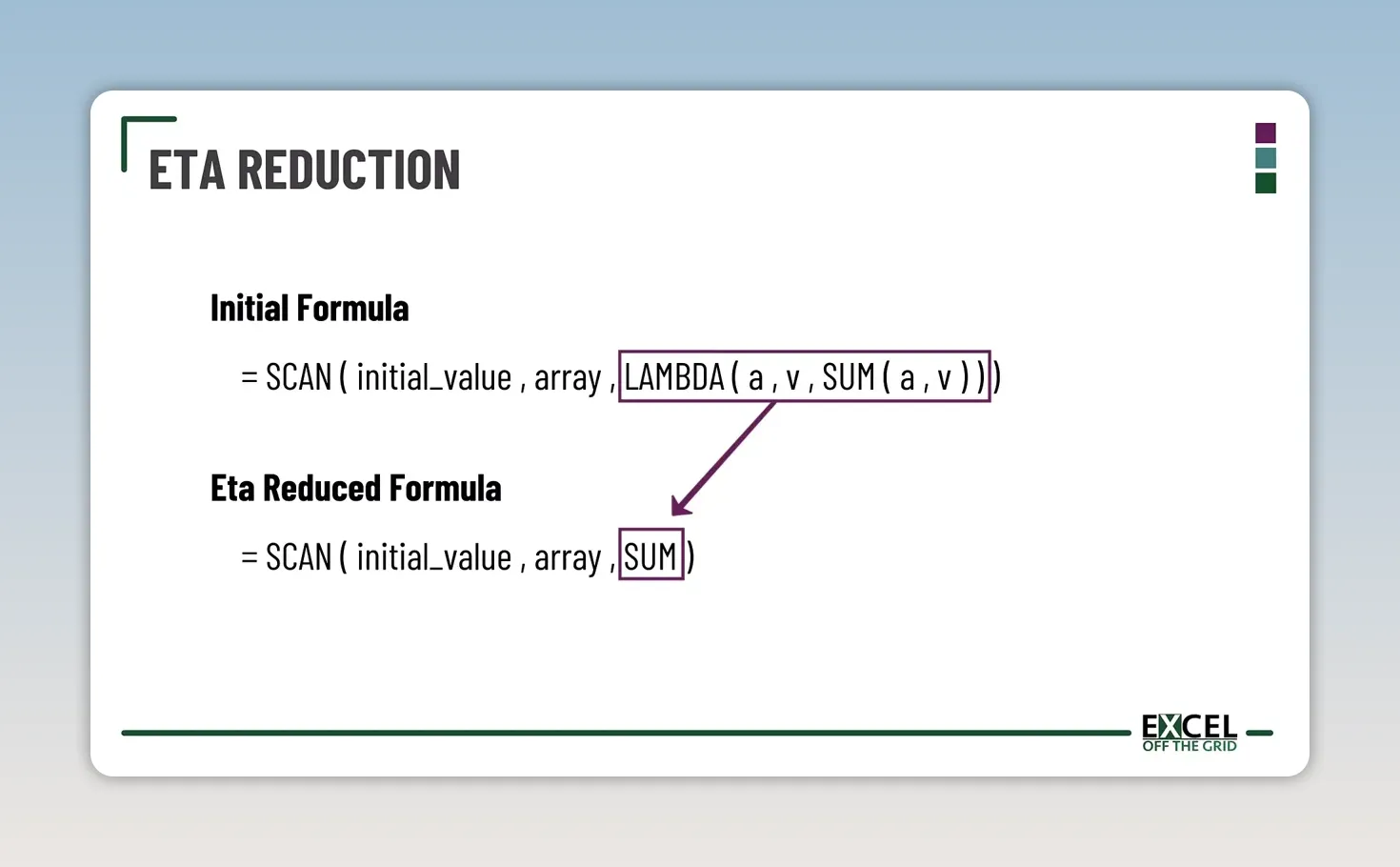
This works because SUM(a,v) is exactly the calculation we want. There is no additional logic between the parameters and the function.
Why COUNT does not create a running count
Shorter syntax does not remove the need to understand what the function receives.
For example, replacing SUM with COUNT might look like a way to count the rows processed:
=SCAN(0,C6:C17+D6:D17,COUNT)But for this numeric example, it returns 2 at every step.
Why? Each calculation receives only two numeric values: the previous result and the current value. COUNT counts those two values. It does not receive all the rows processed so far.
After the first step returns 2, the next calculation counts that numeric result and the next numeric movement, returning 2 again.
The accumulator is a previous result, not a collection of previous inputs. Eta reduction is useful when the function’s behavior matches the calculation we need. Otherwise, we should keep the explicit LAMBDA and define the required logic.
Build a corkscrew calculation with SCAN
A common financial modeling use for SCAN is a corkscrew calculation.
This is a repeating sequence in which:
- A period begins with an opening balance.
- Movements increase or decrease that balance.
- The period ends with a closing balance.
- That closing balance becomes the next period’s opening balance.
SCAN is a natural fit because every new closing balance depends on the previous result.
In this example, periods run horizontally across columns D to O. Inflows are in row 25, outflows are negative amounts in row 26, and the starting balance is in C31.
1. Calculate the net movements
In D30, enter:
=D25:O25+D26:O26This spills the net movements across the periods.
2. Calculate the closing balances
In D31, enter:
=SCAN(C31,D30#,SUM)Here is how the arguments work:
- C31: The starting balance used for the first calculation.
- D30#: The complete spilled array of movements beginning in D30.
- SUM: Adds each movement to the previous closing balance using eta reduction.
The # symbol is the spill-range operator. It lets us refer to the entire dynamic array from its starting cell.
SCAN returns all the closing balances in one horizontal spill range.
3. Calculate the opening balances
Once the closing balances are available, we can calculate each opening balance by subtracting the period’s movement.
In D29, enter:
=D31#-D30#This reverses the relationship between opening balance, movement, and closing balance:
Opening balance = Closing balance - Net movement
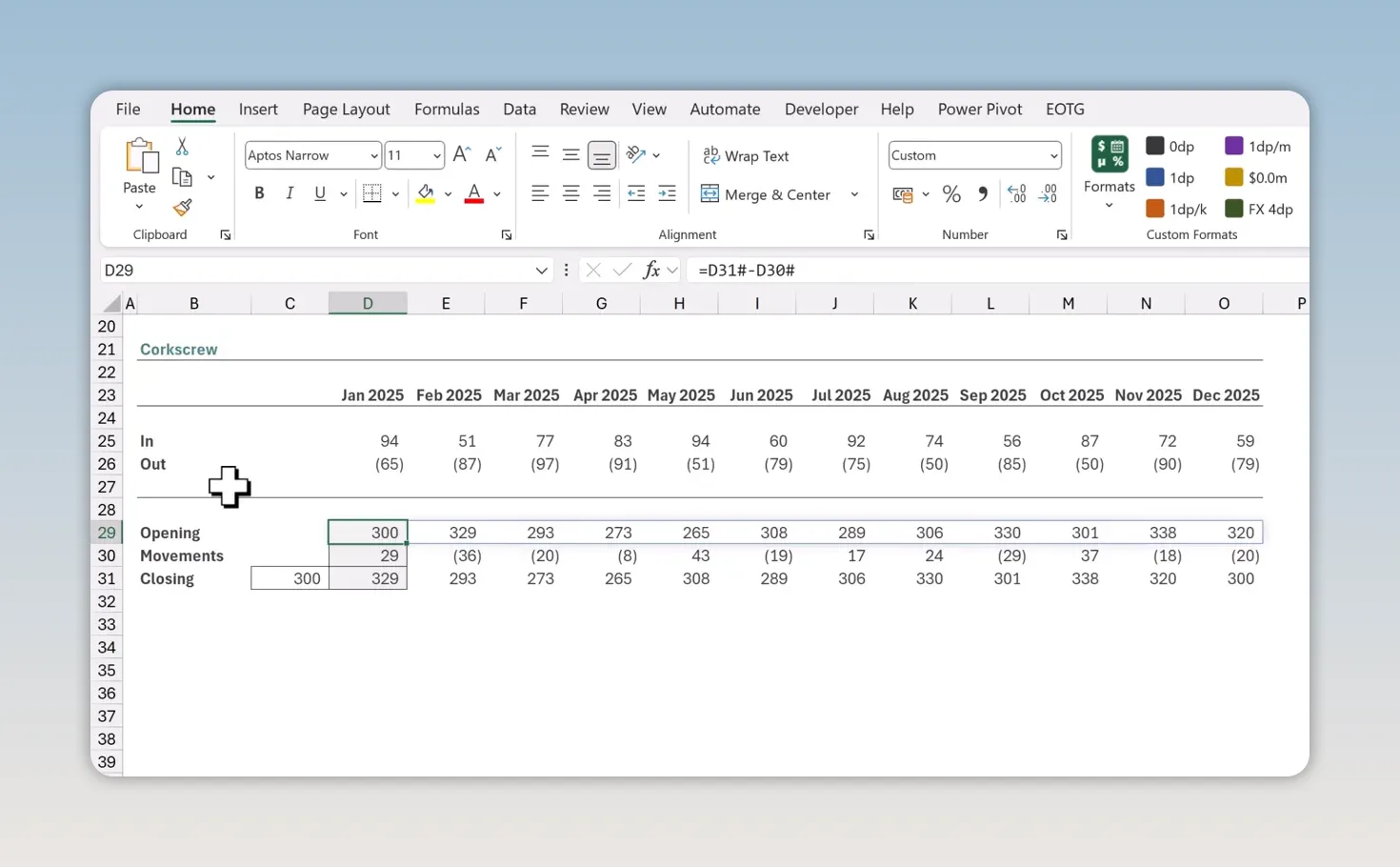
We now have a complete corkscrew calculation using three simple spilling formulas. SCAN handles the dependency between periods, while ordinary array arithmetic calculates the movements and opening balances.
When should you use SCAN?
Think of SCAN when a calculation needs to carry a result forward and you want to return the result at every step. Running totals and rolling opening and closing balances are clear examples.
The most useful question is: What does the next calculation need from the previous calculation? Once we know that, we can identify the initial value, choose the array, and define the calculation inside LAMBDA.
Start with descriptive parameter names if that makes the formula easier to follow. Once the logic is clear, shorter names or eta reduction can make it more compact without changing how it works.
For more structured training on dynamic arrays and LAMBDA, my Dynamic Formulas Unleashed course covers these techniques in depth. You can find out more on the Excel Off The Grid website.


