Excel’s LAMBDA helper functions can sometimes produce exactly the same result. That is useful, but it also makes choosing between them a little confusing. If BYROW works, could we use MAP instead? What about SCAN or REDUCE?
The answer depends on two things: what Excel passes into each calculation, and which results you want returned.
We will work through two scenarios using the same data. The first shows why these functions can appear interchangeable. The second makes their differences much clearer.
What You'll Learn
- BYROW processes complete rows, while MAP processes individual values within an array.
- SCAN carries results between calculations and returns every intermediate accumulated result.
- REDUCE returns only the final accumulator, which can contain a deliberately constructed array.
- Single-column inputs can make different LAMBDA helper functions produce identical results.
The example data and dynamic array report
Our source is an Excel table named Data, with three columns:
- Item: The item associated with each record.
- Quarter: The quarter associated with each record.
- Value: The number we want to combine or calculate.
The numbers themselves are not important. We are interested in how each function processes them.
For the first scenario, we want a unique list of items, with all the matching values joined together beside each item. Each number should be separated by a pipe symbol, |.
For the second scenario, we use an item-by-quarter report. Its dynamic array formulas are:
- In I6,
=UNIQUE(Data[Item])returns the item list vertically. - In J5,
=TRANSPOSE(UNIQUE(Data[Quarter]))returns the quarters horizontally. - In J6, the following formula returns the totals at each item and quarter intersection.
=SUMIFS(Data[Value],Data[Item],I6#,Data[Quarter],J5#)The # symbol refers to the entire spill range starting at a cell. So J6# represents the complete block of calculated values, not just the value in J6.
We will use that block to compare row totals, individual cell calculations, running totals, and a final accumulated total.
BYROW: Run a calculation for each row
BYROW passes each row of an array into a LAMBDA and returns one result per row. The important part is that the LAMBDA receives the whole row, even when that row contains several columns.
Scenario 1: Join matching values for every item
Start by entering this formula in F6:
=UNIQUE(Data[Item])This produces our unique item list. To retrieve the values for the first item, we could enter the following in G6:
=FILTER(Data[Value],Data[Item]=F6)FILTER returns all values whose item matches F6. Those values spill into separate cells. To put them into one cell, wrap FILTER inside TEXTJOIN:
=TEXTJOIN("|",TRUE,FILTER(Data[Value],Data[Item]=F6))Here, "|" is the separator, and TRUE tells TEXTJOIN to ignore empty cells.
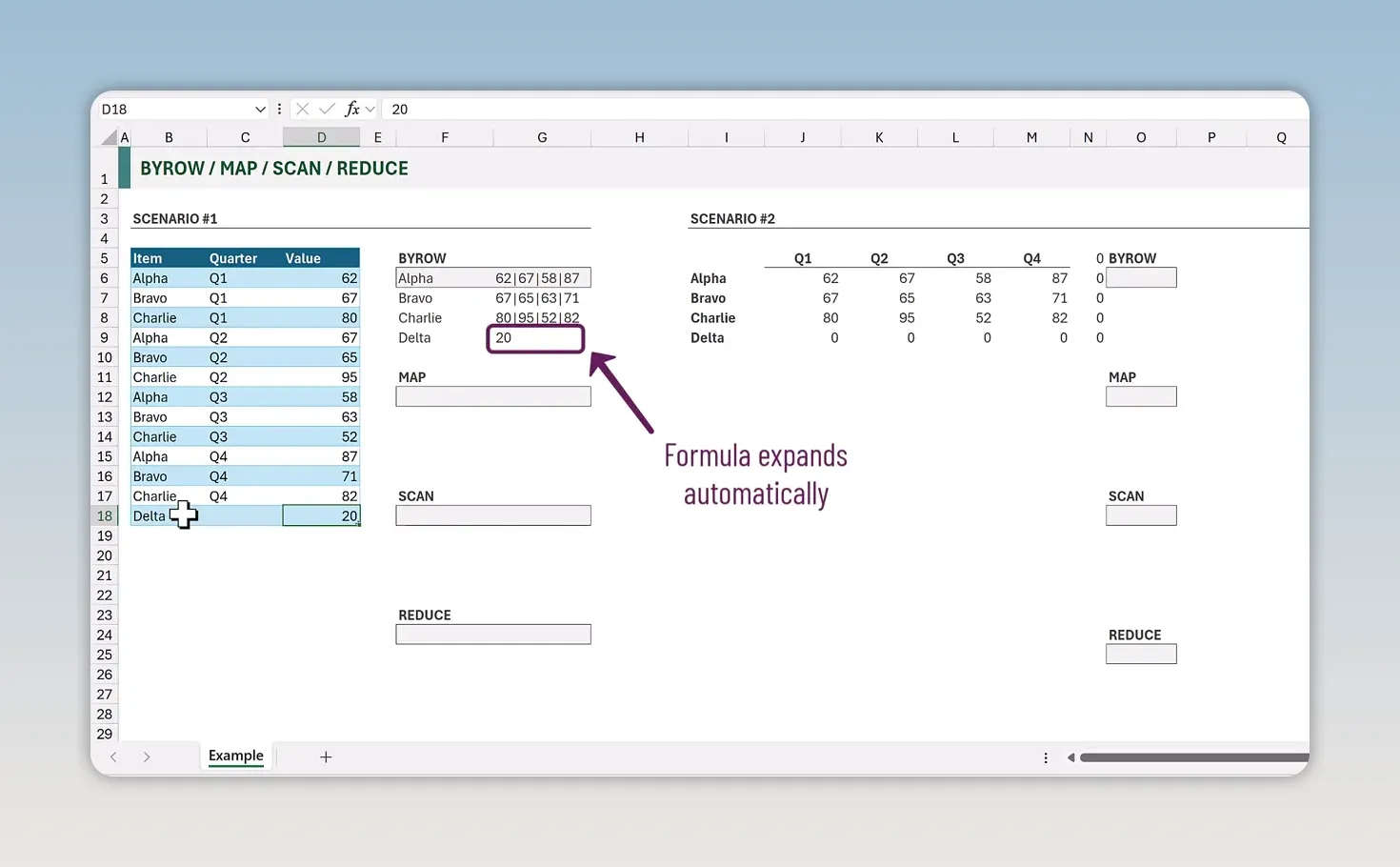
That works for one item. We could copy the formula down, but there is a problem: if we add a new item such as Delta to the source table, UNIQUE expands automatically while our copied formulas do not.
Simply changing F6 to F6# does not solve this particular calculation. We need Excel to run FILTER and TEXTJOIN separately for every item in the spilled list.
First, turn the calculation into a LAMBDA:
=LAMBDA(itemValue,TEXTJOIN("|",TRUE,FILTER(Data[Value],Data[Item]=itemValue)))itemValue is a placeholder for the item being processed. The name is not special; it just makes the formula easier to understand.
Defining the LAMBDA does not yet supply the items to calculate. That is where BYROW comes in:
=BYROW(F6#,LAMBDA(itemValue,TEXTJOIN("|",TRUE,FILTER(Data[Value],Data[Item]=itemValue))))BYROW takes each row from F6# and passes it into itemValue. FILTER retrieves that item’s values, and TEXTJOIN combines them into one text result.
Now the formula spills down automatically. Add a new item to the table, and both the unique list and the joined results expand.
Scenario 2: Sum each row and add 20% tax
The first example uses a single-column input, so each row contains only one item. To see BYROW’s purpose more clearly, use the multi-column report in J6#.
We want to sum the quarterly values for each item, then add 20% tax:
=BYROW(J6#,LAMBDA(rowValues,SUM(rowValues)*1.2))For each row, Excel:
- Passes all quarterly values into
rowValues. - Sums those values.
- Multiplies the total by 1.2.
- Returns one result for that item.
The output is a single column of tax-inclusive row totals.
There is also a BYCOL function. It follows the same idea, but passes a column into each calculation rather than a row.
MAP: Run a calculation for each cell
MAP applies a LAMBDA to each individual value in an array. In these examples, that means one cell at a time rather than one complete row.
Scenario 1: The same joined results
We can replace BYROW with MAP in the item-list calculation:
=MAP(F6#,LAMBDA(itemValue,TEXTJOIN("|",TRUE,FILTER(Data[Value],Data[Item]=itemValue))))The result is identical. Why? Because F6# contains only one column. Each row contains one cell, so processing a row or processing a cell supplies the same item to the LAMBDA.
This is why a single example can make two different helper functions look interchangeable.
Scenario 2: Tax applied to each quarterly value
Now replace BYROW with MAP in the tax calculation:
=MAP(J6#,LAMBDA(cellValue,SUM(cellValue)*1.2))This time, the output spills both across and down. MAP receives each quarterly value individually, so it returns a tax-inclusive result for every cell in the original report.
Notice that SUM(cellValue) is not doing anything useful here. It is only summing one number. The calculation can therefore be written more simply as:
=MAP(J6#,LAMBDA(cellValue,cellValue*1.2))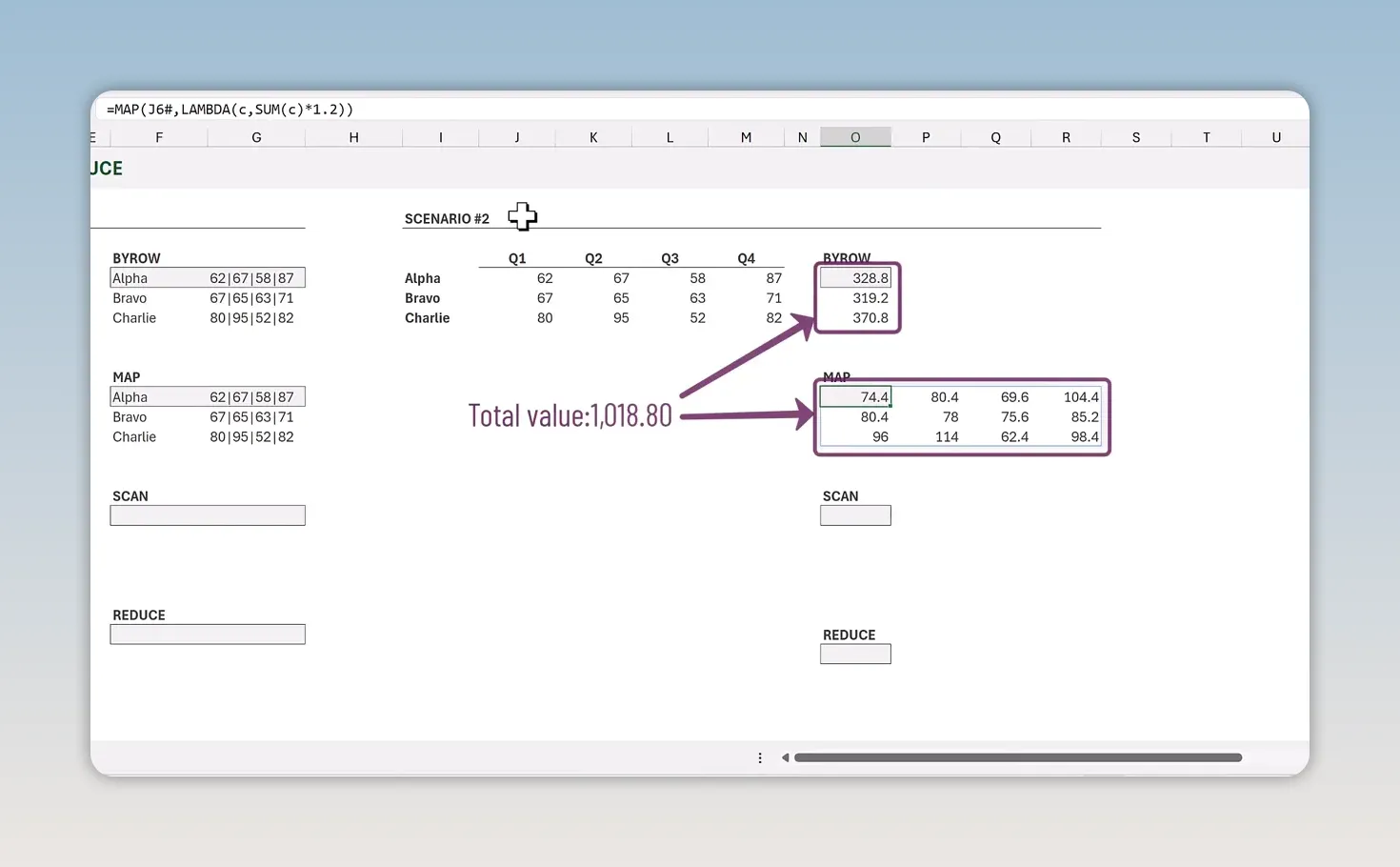
The distinction is straightforward: BYROW calculates with a whole row; MAP calculates with each individual cell. Both can apply the same tax rate, but they return results at different levels of detail.
SCAN: Keep the previous result and return every step
SCAN also processes individual cells, but it adds something important: an accumulator.
The accumulator holds the previous calculation’s result and makes it available to the next calculation. SCAN returns every intermediate result, which makes it useful for running totals.
Compared with the earlier formulas, SCAN needs an initial value and a LAMBDA with two parameters:
- acc: The accumulated result from the previous step.
- value: The current value being processed.
On the first step, the accumulator contains the initial value supplied to SCAN.
Scenario 1: Ignore the accumulator to repeat the item calculation
We can produce the joined item results with SCAN:
=SCAN("",F6#,LAMBDA(acc,value,TEXTJOIN("|",TRUE,FILTER(Data[Value],Data[Item]=value))))We start with an empty text string, "", because this is a text calculation.
The LAMBDA still has an accumulator parameter, but the calculation does not use it. Instead, it filters and joins the values for the current item independently.
The output matches BYROW and MAP. It works, but it does not demonstrate what makes SCAN different.
Scenario 2: Turn individual calculations into a running total
For the numeric report, start with zero:
=SCAN(0,J6#,LAMBDA(acc,value,SUM(value)*1.2))Again, we have not used acc inside the calculation, so the output matches MAP. Each cell is multiplied by 1.2 independently.
Now add the accumulator to the current tax-inclusive value:
=SCAN(0,J6#,LAMBDA(acc,value,acc+SUM(value)*1.2))That small change creates a running total. Each step takes the previous result and adds the current value multiplied by 1.2.
The tax applies to the current value before it is added to the accumulator. We are not repeatedly taxing the accumulated balance.
SCAN returns the result after every calculation, so the final entry contains the accumulated tax-inclusive total for the report. The earlier entries show how that total builds up.
REDUCE: Keep the previous result, but return only the final result
REDUCE uses the same basic arguments as SCAN: an initial value, an array, and a LAMBDA with an accumulator and a current value.
The difference is in what comes back. SCAN returns every intermediate result; REDUCE returns only the final accumulated result.
Scenario 1: Why replacing SCAN loses the earlier items
Change the text calculation from SCAN to REDUCE:
=REDUCE("",F6#,LAMBDA(acc,value,TEXTJOIN("|",TRUE,FILTER(Data[Value],Data[Item]=value))))This returns only the joined values for the last item.
Our calculation does not use the accumulator, so each step replaces the previous result. REDUCE returns whatever remains after the final step, which is the last item’s joined text.
To return all the item results, we need to make the accumulator contain all of them.
Build an array with VSTACK
VSTACK lets us append each new result below the accumulated results:
=REDUCE("",F6#,LAMBDA(acc,value,VSTACK(acc,TEXTJOIN("|",TRUE,FILTER(Data[Value],Data[Item]=value)))))Each calculation now stacks the current item’s joined text underneath the array built so far. By the final step, the accumulator contains every item’s result.
There is one small issue: the output includes an empty first row. That row comes from the initial empty text string supplied to REDUCE.
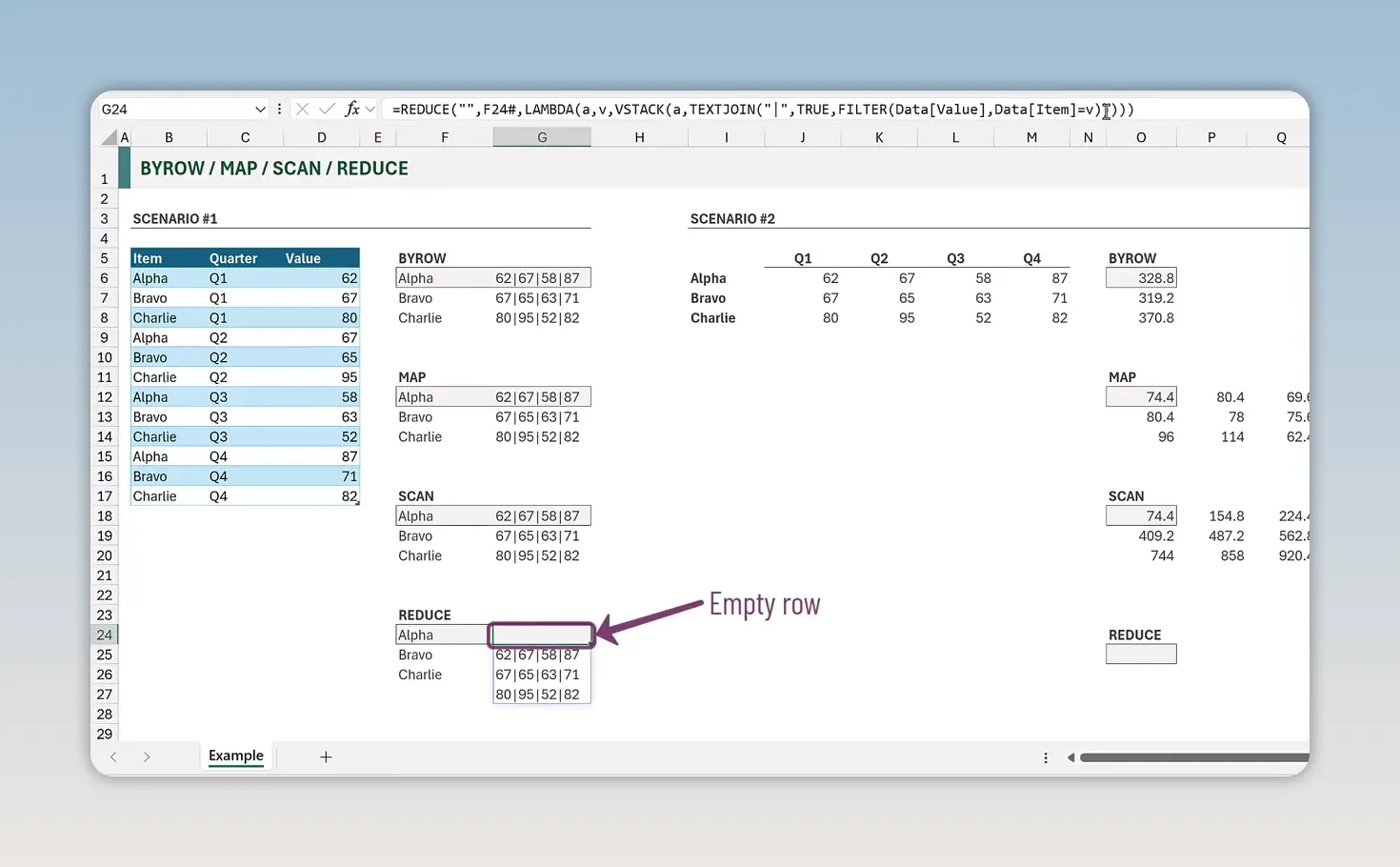
Wrap the calculation in DROP to remove that first row:
=DROP(REDUCE("",F6#,LAMBDA(acc,value,VSTACK(acc,TEXTJOIN("|",TRUE,FILTER(Data[Value],Data[Item]=value))))),1)We now have the same visible result as the BYROW, MAP, and SCAN versions.
This also explains an important detail: REDUCE returning only the final result does not mean that result must be a single number or text value. Here, the final accumulated result is an array that we deliberately built with VSTACK.
Scenario 2: Return the final tax-inclusive total
For the numeric example, replace SCAN with REDUCE in the running-total formula:
=REDUCE(0,J6#,LAMBDA(acc,value,acc+SUM(value)*1.2))The calculation still adds each tax-inclusive value to the accumulator. But instead of returning every step, REDUCE returns one final total.
That total matches the final accumulated value returned by SCAN.
Which LAMBDA helper function should you use?
The easiest way to choose is to think about the unit of calculation and the output you need:
- Use BYROW when each calculation needs a complete row and should return one result per row.
- Use MAP when each individual value needs its own independent calculation.
- Use SCAN when each calculation needs the previous result and you want every intermediate result returned.
- Use REDUCE when each calculation needs the previous result but you want only the final accumulated result.
Our joined-text example can be solved with all four functions, although REDUCE needs extra work to preserve every item’s result. The quarterly report exposes their different purposes: row totals, individual cell results, a running total, or one final total.
So the question is not just whether a function can produce the answer. It is whether it naturally processes the data and returns the results in the way your calculation requires.


